Smart TV privacy for engineers: what your TV talks to, and how to block it
December 27, 2025
Smart TVs are the one “computer” most households never threat-model. They get unboxed, join Wi‑Fi, and then sit for years as an always-on client that runs vendor firmware plus whatever ad, analytics, and “smart assistant” components shipped with the OS.
If you’re an engineer, you already assume it phones home. The productive question is: what exactly does “phones home” mean at the network layer, and which parts are essential versus optional? This post answers that with a network log approach: you capture DNS and outbound connections in a few controlled phases, then you toggle privacy settings one at a time and measure the deltas.
Scope: this is legitimate privacy hardening for devices you own on networks you control. The goal is reducing unnecessary data exhaust and third-party dependencies, not bypassing DRM or breaking terms.
Quick threat model (engineer version)
You don’t need a conspiracy theory. You need categories and evidence.
Most Smart TVs produce network traffic in six buckets:
- Device identity and inventory (model, firmware build, region, installed apps, ad ID)
- Usage analytics (app opens, session durations, performance counters)
- Advertising and tracking (ad requests, measurement, bidding, attribution)
- ACR (automatic content recognition) or “viewing information” signals (varies by vendor/settings)
- Voice-related traffic (if there’s a microphone in the remote or TV)
- Updates and time (firmware manifests, CDNs, certificate checks, NTP)
If you do nothing, updates and time will happen. Many devices also emit analytics by default. Ad and ACR behavior depends heavily on the OEM and on what you accept during setup.
Lab setup: capture first, block second
Before you block anything, capture a baseline. Otherwise you will end up debugging “TV is broken” without knowing which rule did it.
The highest ROI setup is a DNS resolver with per-client logs (Pi-hole, AdGuard Home, NextDNS). Router-only DNS logs can still work; you just want something searchable.
DNS is half the story. If you can, also capture some form of connection telemetry: router firewall logs, a client connection list, or anything that shows destination IP and port for the TV. You do not need full packet capture to get value here. The goal is simply to confirm which hostnames are actually used for repeated outbound connections, versus which ones are just pre-resolved “maybe later” candidates.
Two rules that keep this sane:
First, capture in phases: first boot, idle, UI browsing, launching a streaming app, then toggling settings. Second, change one setting at a time. Smart TV “privacy” menus bundle multiple behaviors under one label, so you need controlled deltas.
A log format that stays readable
Keep it simple. Your goal is a story you can replay later, not a 200MB PCAP you never revisit.
Here is a practical template you can paste into your notes:
- Device MAC/IP and TV model
- Firmware version (write it down)
- Time window
- Action performed
- DNS delta (new hostnames or frequency changes)
- Endpoint delta (new connections or repeated uploads)
- UX notes (did something break? did a tile disappear?)
Baseline: what you typically see on a fresh TV
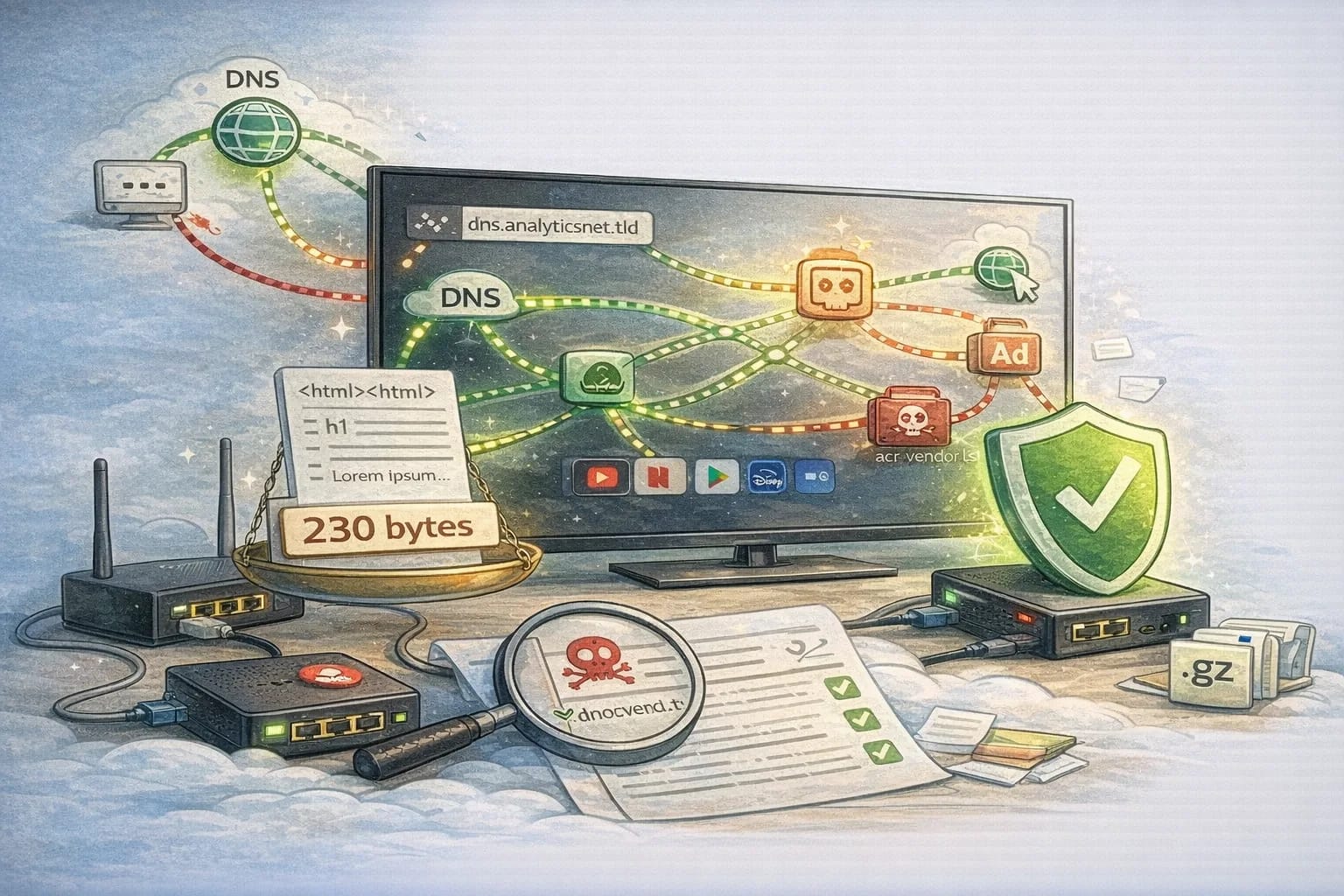
Within minutes of joining Wi‑Fi, most Smart TVs produce DNS queries from the same families: NTP/time, firmware/CDN, configuration fetches, telemetry, and (often) advertising.
One important nuance: DNS looks noisier than reality. Many TVs resolve a long list of candidate endpoints and only connect to a subset. That’s why you log both DNS and “did it actually connect?” where possible.
When you only have DNS logs, focus on frequency and timing. Hostnames that repeat every minute while the TV is idle usually map to either telemetry heartbeats or ad refresh. Hostnames that appear only once per boot often map to setup, registration, or update checks.
When you also have connection telemetry, the workflow is straightforward: start with the destinations that get real connections, then work backwards to the hostnames and categories. This keeps you from blocking a random DNS name that never mattered in the first place.
Classifying hostnames quickly
You do not need to perfectly label everything. You need a quick, defensible classification so you can decide what to keep, what to disable in settings, and what to block.
In practice, names and URL paths often self-identify. Words like update, firmware, cdn, time, ntp usually belong to the “device still works” bucket. Words like metrics, telemetry, analytics, crash, beacon often belong to the “optional diagnostics” bucket. Words like ads, adserver, bid, ssp, pixel, measurement usually belong to the advertising bucket.
Do not treat keywords as proof. Treat them as a triage tool, then validate by timing. If a hostname only shows up when you open the app store or featured tiles, it is very likely UI ads or measurement. If it shows up when you run “check for updates,” it is very likely update plumbing.
Network log: phase-by-phase captures
Below are representative log shapes you can reproduce. The hostnames are intentionally generic because OEMs vary; the point is the pattern.
Phase 1: first boot + Wi‑Fi join
Action: power on, choose language/region, join Wi‑Fi, skip optional sign-in if possible.
What you typically see: time/NTP almost immediately, vendor config endpoints early, and CDN resolution even before you finish setup.
Example DNS log:
12:01:10  TV  A  time.vendor.tld
12:01:11  TV  A  ntp.pool.tld
12:01:14  TV  A  config.vendor.tld
12:01:15  TV  A  updates.vendor.tld
12:01:18  TV  A  cdn.vendorassets.tld
12:01:22  TV  A  telemetry.vendor.tld
12:01:27  TV  A  ads.platform.tld
12:01:29  TV  A  measurement.platform.tld
It’s normal that the first “privacy choices” prompt appears after the TV already contacted several endpoints. That’s not a reason to panic, it’s a reason to measure what changes after you opt out.
Phase 2: idle on home screen (10–15 minutes)
Action: do nothing. Let it sit.
Idle time is where you find the “always-on tax”: heartbeats, ad refreshes, telemetry uploads, and retry loops.
If your DNS tool supports it, sort queries by hostname and frequency. The high-frequency domains are the first place to focus because they’re the biggest privacy and reliability levers.
Phase 3: open a built-in app store / “featured” panel
Action: open the app store and scroll. Don’t install anything.
This usually spikes ad and tracking traffic because the home screen and app store are effectively ad surfaces.
The practical insight: blocking obvious ad and measurement endpoints often does not break streaming playback, but it can reduce “featured” tiles or remove some UI promos. That’s a tradeoff many people gladly accept.
Phase 4: launch YouTube (or a popular streaming app)
Action: open YouTube, play a video, pause, resume.
Expect a separate set of endpoints for the app itself (often long-lived connections) while the TV OS continues background chatter in parallel.
A useful trick is to compare the same app on another device (phone/console). The overlap is “the app,” while the extra domains are “the TV OS ecosystem.”
The toggles experiment: what changes when you flip privacy settings
TV privacy menus are marketing-heavy. Don’t trust the label; trust the delta. Flip one toggle, repeat the same actions, and compare logs.
Here are common settings and the network patterns they often affect.
1) “Personalized ads” / “Interest-based ads”
Typical UI wording:
- Personalized ads
- Ads measurement
- Limit ad tracking
- Reset advertising ID
What often changes is not “ads disappear.” Instead, you usually see fewer third-party ad exchange calls and fewer measurement endpoints. Some first-party “consent state” calls may remain.
How to verify:
- Before: open the home screen “featured” tiles for 5 minutes.
- Toggle personalized ads off.
- After: repeat the same 5-minute navigation.
Expected delta:
- Fewer
ads.*,bid.*,ssp.*,measurement.*hostnames. - Some endpoints remain because UI still loads promotional content; those may be first-party.
Blocking strategy: start with obvious third-party measurement and ad exchange domains. If the UI breaks, allowlist vendor domains first; keep third-party blocked as long as core streaming is fine.
2) “ACR” / “Viewing information” / “Live TV recognition”
Typical UI wording:
- Viewing information
- Content recognition
- Recommendations based on what you watch
When ACR is active, the strongest signal is that traffic correlates with watching HDMI/live TV content, not just with using apps.
Practical test:
- Watch live TV or HDMI input for 5 minutes.
- Compare to 5 minutes on an app.
Expected delta:
- If ACR is active, you may see a pattern where traffic increases specifically during live/HDMI usage.
Hardening: disable ACR in settings first. If recognition-like traffic persists, block the relevant endpoints and confirm live TV and HDMI inputs still behave.
3) “Diagnostics” / “Send usage data” / “Improve our products”
Typical UI wording:
- Share device diagnostics
- Send usage statistics
- Improve product experience
What changes:
- Fewer telemetry uploads.
- Less frequent “log batch” posts.
What does not always change:
- Some heartbeats remain.
- Crash reporting may remain.
Hardening: disable diagnostics, then block telemetry endpoints. Watch for retry storms. If a blocked hostname causes aggressive retries, a firewall drop (or a fast reject) can reduce noise compared to DNS sinkholing.
4) Voice features
If your TV has voice control, there are usually toggles for:
- Voice recognition
- Wake word
- Voice assistant integration
Expected delta:
- Fewer calls to voice service endpoints.
- Reduced periodic capability checks.
Hardening advice:
- If you do not use voice, disable it in settings and remove microphone permissions if available.
- If you do use voice, accept that you are allowing a class of traffic you cannot “partially” inspect. Instead, isolate it on its own VLAN and keep everything else strict.
Blocking approaches (from easiest to most robust)
Option A: DNS-level blocking (fast, reversible)
This is the default recommendation because it’s quick and doesn’t require deep router/firewall features.
How it works:
- The TV asks your DNS resolver to resolve a hostname.
- Your resolver returns NXDOMAIN or a sinkhole address.
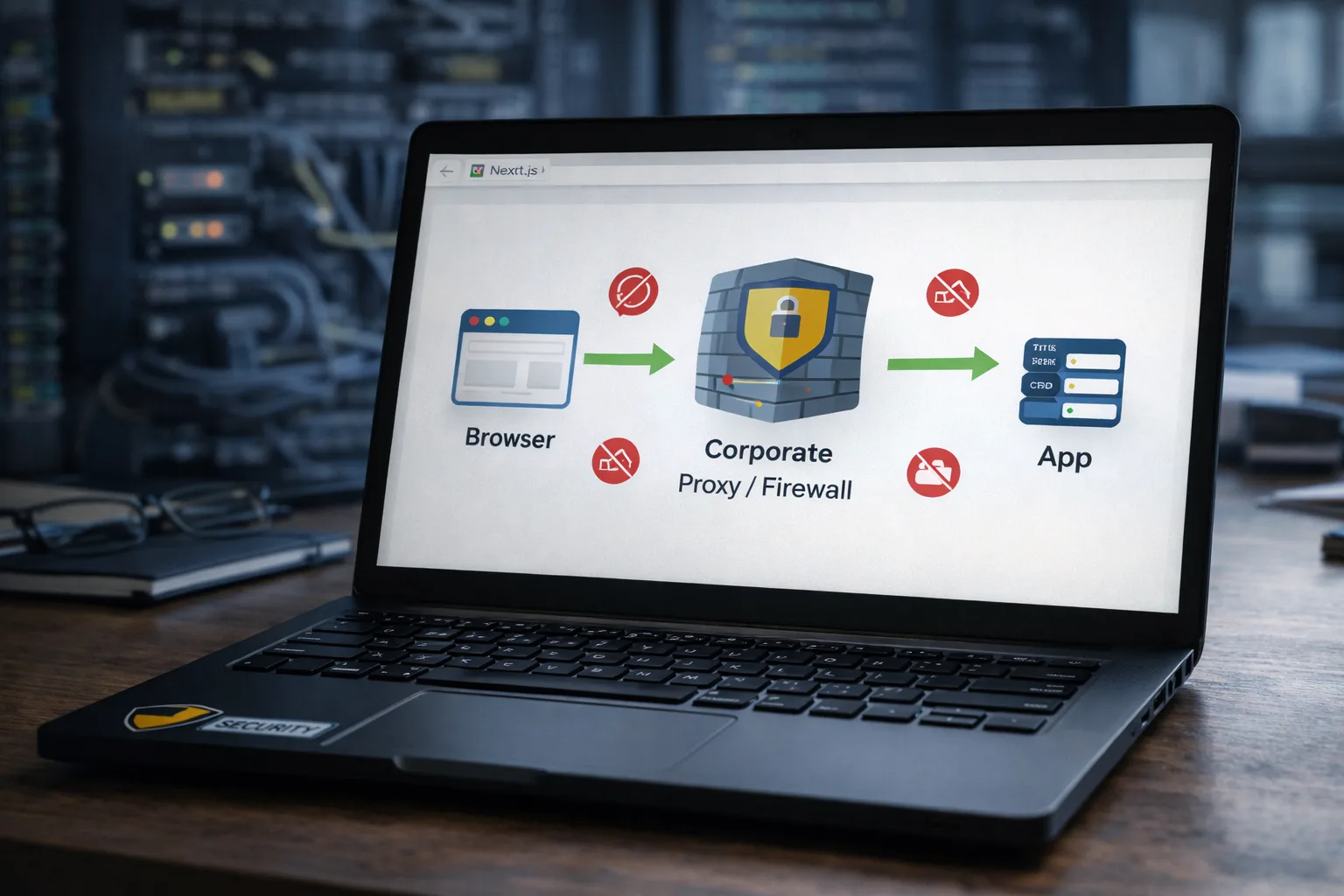
DNS blocking is the fastest way to get results because it’s reversible. The main limitation is bypass behavior (hardcoded DNS or DoH/DoT). The practical fix is pairing DNS blocking with basic egress rules (for example, block outbound 53/853 from the TV network so it must use your resolver).
One practical point: different blockers fail differently. Some return NXDOMAIN, some return a sinkhole IP. Devices react differently. If you see a blocked hostname causing constant retries, it may be better to block at the firewall level (drop or reject) so the TV fails fast and stops hammering your DNS.
Option B: VLAN + egress filtering (cleanest privacy posture)
Put the TV on its own network segment:
- TV VLAN cannot reach your LAN.
- TV VLAN can reach the internet, but with controlled egress.
You can be strict in two ways:
- Allowlist mode: only allow known-good domains/IP ranges.
- Blocklist mode: block known bad categories.
Allowlisting is cleaner but higher maintenance. A pragmatic hybrid:
- Allow the OS vendor cloud and update CDN.
- Allow the streaming services you use.
- Block ad/measurement and telemetry.
Option C: “Dumb TV” mode (physically unplug network)
If you only use HDMI inputs (console/Apple TV/Chromecast), the simplest privacy hardening is:
- Don’t connect the TV to Wi‑Fi.
- Keep it offline.
This eliminates most telemetry. You lose convenience features and possibly firmware updates.
Detecting DoH/DoT and other bypass behaviors
Some devices try to bypass local DNS policies.
Signs:
- Your DNS logs are quiet, but you still see outbound traffic.
- The TV makes outbound connections to known resolver IP ranges (public DNS providers).
- TLS connections where the SNI looks like a resolver/DoH service.
Hardening response:
- Block outbound 53/853 from the TV VLAN (force DNS through your resolver).
- If your router supports it, redirect DNS to your resolver (NAT redirect).
- For DoH, block known DoH endpoints or enforce an egress policy that only allows your chosen resolvers.
Keep expectations realistic: you can’t guarantee “zero leakage” without very strict egress control. The goal is to reduce data exhaust and stop ad/telemetry classes of traffic.
Avoiding self-inflicted outages
Most “I blocked a TV and now it is broken” incidents happen because of a few predictable dependencies. If you want to stay aggressive while keeping the living room stable, protect these first:
- Time and certificate validation: if the device time is wrong, TLS breaks in confusing ways.
- Updates and OS assets: blocking the vendor CDN too early can strand the device on old firmware.
- Account and entitlement checks: some apps validate subscription status at launch.
The safest sequencing is: disable privacy toggles first, measure deltas second, then block third-party ad and measurement endpoints, then evaluate telemetry endpoints last. That order minimizes the chance you accidentally block the plumbing that makes everything else work.
A practical playbook that doesn’t break your living room
Here’s a workflow that works well in real homes:
- Put TV on a dedicated SSID/VLAN (even if it’s just a “Guest” network).
- Use a DNS blocker for that client group.
- Disable in settings:
- Personalized ads
- ACR/viewing information
- Diagnostics/usage sharing
- Voice features (if unused)
- Capture 15 minutes of idle/home screen after each change.
- Only then start blocking:
- Third-party ad and measurement endpoints first.
- Telemetry endpoints second.
- Verify:
- Updates still work (manual update check).
- Streaming apps still play.
- Remote and casting features you care about still function.
If something breaks, roll back in this order:
- Allowlist a single hostname you blocked (not an entire category).
- If the TV retries aggressively, block at firewall level instead (faster failure can reduce retry storms).
Why this matters (even if you “don’t care about ads”)
Engineers sometimes shrug and say “so what, it’s ads.” But in practice, these endpoints increase:
- Attack surface (more third-party code paths and dependencies).
- Network noise (harder to spot real anomalies).
- Data exposure (unique device identifiers tied to home IPs).
Reducing unnecessary traffic is a reliability improvement as much as a privacy one.
Checklist
Here is a tight done definition: the TV sits on an isolated network, DNS logs are mostly vendor plus streaming services, ad and measurement endpoints are blocked, ACR and diagnostics are off, firmware updates still work, and you do not see retry storms hammering your resolver.
The right end state is not “block everything.” It is “block what is not needed.” Capture, label, toggle, measure, then block. That keeps your privacy posture defensible and maintainable.